Showing posts with label VFPX. Show all posts

Thursday, August 06, 2026

New Version of DeployFox

DeployFox automates the steps required to deploy your applications by providing a customizable list of tasks: copy files, rename files, build a project into an EXE, digitally sign an EXE, run an Inno Setup script to create an installer, upload files to an FTP site, and so on.

I released a new version today that adds a new capability: templates. I have several applications that have nearly identical DeployFox projects: Stonefield Query for AccountMate, Stonefield Query for Alere, Stonefield Query for Sage 300, and several others. By creating DeployFox variables, I made the tasks more generic. For example, the Copy SFQuery.CHM task, which every application's DeployFox project has, copies {$ProjectFolder}\HTMLHelp\sfquery.chm to {$ProjectFolder}. $ProjectFolder contains the folder where the application is located so the task is the same for every application. For those tasks that have different settings, I have an INI file containing the values for those settings for the current project, read those values into DeployFox variables, and then use those variables for the setting values.

Because all of the applications use almost the same set of tasks, when I recently changed one of the tasks, I had to do it in the DeployFox project for each application. I realized that having a common set of tasks would make that much easier, so the idea of templates was born.

I now have a DeployFox project called DeploymentTemplate. Each of the applications uses tasks from that project: the ones shown in green in the image below. The settings for a task that comes from a template can't be edited except the Active and Order values. To edit the other settings for a task, do in it the template project.


To add tasks from a template to the current project, click the template button and select a DeployFox project. The dialog that appears allows you to select which tasks to add from the template project to the current one.


This new feature will save me a lot of time if I need to change any tasks in future releases of Stonefield Query versions.

Saturday, December 30, 2023

Introducing FoxGet Package Manager

If you've worked with Visual Studio, you've likely used NuGet, which is a package manager for .NET. The idea is that you can search for libraries you'd like to add to your application, download and install them, and then have them managed (automatically download again if files are missing, update to a new version, etc.).

FoxGet is a new tool that's the VFP equivalent of NuGet. You run FoxGet when you want to add a library to an application. You search for a library you're interested in and if one is found, you can download, install, and add it to your project with a single mouse click. Of course, you'll have to do the coding part such as calling the library yourself.


FoxGet is available now at https://github.com/DougHennig/FoxGet. In a little while, it'll be available via Thor Check for Updates. All you need is FoxGet.app. There are currently installers for 24 popular VFP open source libraries.

To use FoxGet, open the project for the application you want to add a library to and DO path\FoxGet.app, where path is the folder where you placed FoxGet.app. If you installed it using Thor Check for Updates, you can choose FoxGet Package Manager from the Thor Tools, Applications menu. Select a library (also known as a package) and click Install. FoxGet downloads just the necessary files (no samples or documentation), puts them into a subdirectory of a new Packages subdirectory of your application folder, and adds the necessary files to your project. Uninstalling is just as easy: select the package and click Uninstall.

I look forward to any feedback you have: create issues or discussions in the GitHiub repository.

Thursday, May 11, 2023

Anatomy of a VFPX Project

At the just-concluded Virtual Fox Fest 2023 (May), I presented a session titled "Anatomy of a VFPX Project". Normally I don't make white papers and sample files from conference sessions available until one year after it was originally presented to discourage people from not attending a conference because the material is available for free. However, the other organizers of Virtual Fox Fest, Rick Schummer and Tamar Granor, agreed with me that this is an important topic for our community because it both encourages and instructs VFP developers on how to contribute to VFPX. So, the white paper and sample files are available now from the Technical Papers page of my web site. You can also watch a video of the presentation.

Sunday, April 02, 2023

New VFPX Project: List Manager

Many tables have columns containing a small range of values. For example, for a customer type column in a customer table, the acceptable values might be "Business", "Consumer", and "Government". Your choices for data entry into such columns are:
  • Allow the user to type a value. This is bad idea because the user may not know what the acceptable values are or may type them incorrectly.

  • Hard-code the values in a combobox. Adding values to the list means changing the program and deploying an update.

  • Create lookup tables for the values. If there are a lot of such columns, that's a lot of tables and maintenance forms for those tables to create.
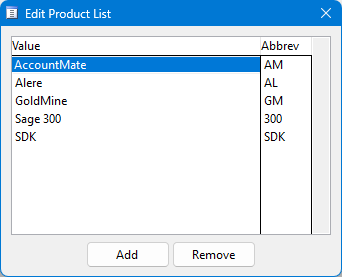
List Manager is a new VFPX project that manages lists of lookup values and provides controls so users can select values from these lists.  A single table contains all of the lookup values for an application and a single maintenance form allows users to add, edit, or remove values.


Users can select a single value from a specific type of lookup:


or select multiple values into a comma-separated string:


Wednesday, December 28, 2022

Upsize VFP Free Tables to SQL Server

The VFPX Upsizing Wizard allows you to upsize the tables in a database container to a SQL Server database. It can be used visually by running UpsizingWizard.app or programmatically; see TestEngine.prg that comes with the Upsizing Wizard for an example.

One thing the Upsizing Wizard doesn't do is support free tables. The new Upsizer utility gives the Upsizing Wizard the ability to do that. I've used it on decent sized data sets (more than 100 tables with 10 GB of data total) and it works very well. One thing I like is that I can run it over and over to upsize to the same database; that allows me to refresh the SQL Server database with changes in the VFP data while we work on upsizing a VFP application.

Tuesday, December 27, 2022

Updated Upsizing Wizard

I released an update for the Upsizing Wizard that fixes a few bugs and adds some new features. Some of these were suggested by Rick Borup in his Switching to SQL Server session at Virtual Fox Fest 2022 (October), including:

  • Optionally creating default values for all columns so fields that don't allow nulls and aren't listed in an INSERT statement don't prevent the statement from executing.
  • Optionally exporting table and field comments to the MS_Description extended property.
  • Using Varchar(max) rather than Text as the default mapping for Memo.

See the 2022.12.27 section of the Releases section of the Upsizing Wizard VFPX repository for details on all changes.

You can install the new version by cloning the repository, downloading the files from the repository, or using Thor Check for Updates.

And stay tuned: later this week, I'm going to release a new tool that extends the Upsizing Wizard to support free tables and uses SQL Bulk Copy for even better upsizing performance.

Wednesday, March 16, 2022

Sending Emails with Modern Authentication

Thanks to Matthew Olson, who did most of the work figuring how to implement this, I've added support for Modern Authentication to SFMail, a VFPX project providing a library to send emails from VFP applications.

Basic Authentication is simply providing a user name and password to connect to a mail server. More and more mail services have already or are soon moving away from Basic Authentication and implementing Modern Authentication, also known as OAuth2. Modern Authentication uses a two-step process to connect to a mail server: first obtaining a token (a string) from a web server, then using that token to connect to the mail server.

Gmail and Office 365 are two of the services moving away from Basic Authentication sometime in 2022. The SFMail repository has detailed documentation for working with Office 365. I started investigating Gmail, but according to https://support.google.com/cloud/answer/9110914, access to Gmail is considered to be a "Restricted scope" and requires undergoing an annual independent, third-party security assessment. That seems like a pain, so I'm not planning on doing much with Gmail yet. However, based on what (little) I know about OAuth2, I believe that SFMail will work with Gmail.


Friday, March 11, 2022

FoxyDialogs and ctl32: Working Together at Last

Cesar Chalom is one of the best VFP developers in the world, and a great contributor to the VFP community. FoxCharts, FoxyPreviewer, and GDIPlusX are just some of the things he's created or contributed to.

A couple of years ago, he released another tool: FoxyDialogs. This cool add-on provides an incredible amount of control over MESSAGEBOX-style dialogs, so much so that you may do away with creating custom forms for some types of dialogs. For example, one line of code creates this dialog:

FoxyDialog("Covid-19 crazy warning - See the timer -->", ;
    "Please stay home!", ;
    " - Clean your hands often." + CHR(13) + ;
    " - Avoid close contact with people who are sick." + CHR(13) + ;
    " - Stay at home as much as possible." + CHR(13) + ;
    " - Put distance between yourself and other people." + CHR(13) + ;
    " - If you have a fever, cough and difficulty breathing, seek medical attention." + CHR(13), ;
    "!2", ; && Exlamation default with yellow backgound (default)
    "\More Info_99,I agree_5341,Leave me!_89,Ok_116802", ; && Button captions, 1st button disabled
    2, ;  && Default button
    "8000,<SECS> secs.") && Timeout


As excited as I was about FoxyDialogs, I quickly found that it doesn't work well with ctl32, Carlos Allotti's library of components such as BalloonTips, date pickers, status bars, and so on (I would provide a link but sadly his web site is long gone). Trying to call FoxyDialogs after using a ctl32 component causes an error. So, I had to abandon FoxyDialogs because I use ctl32 in most of my apps.

However, recently on Foxite, Daniele Rieffoli of Italy and Tomislav Sokol of Croatia posted about solutions they'd found to the problem. The problem is that both FoxyDialogs and ctl32 use VFP2C32.fll, a library that provides low-level functions that make it easier to work with some Windows API functions. Unfortunately, they use different versions of VFP2C32.fll, causing the conflict. (You won't find the actual FLL with the ctl32 files; ctl32_vfp2c32.prg, which is called by ctl32 components, creates it in the user's temporary files folder if it doesn't already exist.) If a ctl32 component is used before FoxyDialogs, it loads the older VFP2C32.fll, and FoxyDialogs errors on the BINDEVENTSEX statements in its DialogCreated function (BINDEVENTSEX is one of the functions in VFP2C32.fll) because it expects different parameters than the older library does. Using the newer VFP2C32.fll doesn't work because ctl32_vfp2c32.prg calls InitVFP2C32 and that function no longer exists in the newer library. 

The solution is actually simple: use the version that comes with FoxyDialogs and SET LIBRARY TO it at startup before anything in ctl32 is used. When a ctl32 component is used, it calls ctl32_vfp2c32.prg, but that PRG sees that VFP2C32.fll has already been loaded, so it does nothing. None of the ctl32 components I tested had a problem with the newer library, so now they both work together.

Monday, February 28, 2022

New VFPX Project: Object Explorer

As you may know, Matt Slay passed away in 2021. He was a great contributor to the Fox community and VFPX and is greatly missed.

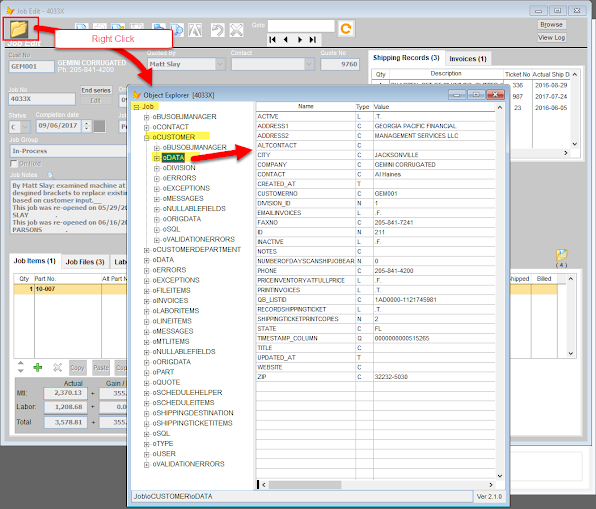
The last tool created by Matt and his friend and frequent collaborator Jim Nelson is Object Explorer, which provides an explorer form to view members of the specified object. Jim has kindly agreed to include this tool in VFPX, so it's available there now.


Object Explorer is a very useful tool for debugging applications, including at runtime. I've just implemented it in my applications so time will tell how often I use it, but Jim and Matt used it a lot, and Tore Bleken allows certain end-users to use it to customize applications.

I made a few tweaks to the original code to fix some minor issues I ran into; see the "2022-02-28" release notes for details. I also created my own copy of Explorer.scx named SFObjExplorer.scx, with Desktop = .T. and this code in Init so it uses Segoe UI rather than the default Arial:

Lparameters toObject, tcObjectName, tcFormCaptionSuffix

dodefault(toObject, tcObjectName, tcFormCaptionSuffix)

This.SetAll('FontName', 'Segoe UI')

This.TreeContainer.oleTree.Font.Name = 'Segoe UI'


Thursday, February 03, 2022

Matt Slay

Matt Slay was a great contributor to the Fox community and a great guy. Sadly, he passed away in October 2021. He is sorely missed.

However, his legacy lives on: the VFPX administrators have forked his projects and changed the project list links to the new repositories so community members can continue Matt's work.

Monday, January 03, 2022

How Thor Survives CLEAR ALL

You may be aware that Thor can survive a CLEAR ALL. (If you aren’t familiar with Thor, you really should be: https://github.com/VFPX/Thor.) While that seems impossible, it’s actually pretty simple but does require that Thor be designed in a certain way.

As you know, CLEAR ALL nukes all objects (among other things; see the VFP help for a complete list of what it affects). And yet, after executing CLEAR ALL, if you choose any of the functions in the Thor menus or use one of the hot keys you’ve assigned in Thor, it works. How is that possible?

The secret is that _SCREEN and _VFP are the only objects that survive CLEAR ALL. Object members of those objects don’t survive but non-object members retain their values. When Thor starts up, it creates a new property of _SCREEN called cThorDispatcher and puts some code into that property. Near the start of that code is the following:

If PemStatus(_Screen, 'oThor', 5) = .F. or Vartype(_Screen.oThor) # 'O'

   _Screen.AddProperty('oThor', Newobject ('oThor', 'Thor.vcx', lcThorApp, lcThorFolder))

EndIf

So, if there’s no oThor member of _SCREEN or it doesn’t contain an object, that property is created and the main Thor class is instantiated into it.

How does that help? It turns out that most places that call Thor functionality don’t execute code like _SCREEN.oThor.SomeMethod(). Instead, they use code like this:

loThor = execscript(_screen.cThorDispatcher, 'Thor Engine=')

loThor.SomeMethod()

Of course, Thor had to be designed to support that: every place that calls Thor methods has to go through the Thor dispatcher rather than calling them directly.

Ingenious!

Tuesday, July 20, 2021

New ErrorHandler VFPX Project

I released a new project to VFPX today called ErrorHandler. It’s a highly configurable and customizable error handler for any VFP application. Implementing ErrorHandler is as simple as adding a few files to your project, adding one line of code to your application startup, and deploying a few files with your application (some of which, such as wwDotNetBridge, you may already be deploying).

ErrorHandler supports logging error information to a table, displaying an easy-to-understand dialog to the user (see image below, although you can replace that dialog with one of your choosing), notifying support staff about the error via email or support ticket, and recovering from the error (either continuing in the application but not returning to the method that caused the error or terminating the application).

errordialog

See the documentation included with the project for complete details on how to implement and customize ErrorHandler in your applications.

Friday, October 30, 2020

Application Configuration using JSON

After watching Andrew MacNeill's Quasar and JSON: A Full Stack Experience for the DB Developer presentation at Virtual Fox Fest 2020, I was inspired to look at nfJSON, a VFX project by Marco Plaza. This cool project adds JSON support to VFP applications. The thing that tweaked my interest was the ability to convert a JSON string to a VFP object and vice versa with one line of code.

My first thought was using this for configuration settings. Just about every application needs configuration settings: it's better to read settings such as database connection information, file locations, email settings, etc. from a configuration source rather than hard-coding them into the app. I've used the Windows Registry, DBF files, INI, and XML files at various times but all of those require manually coding the reading and writing between the source and the VFP object(s) containing the settings. With nfJSON, it's one line of code.

I created a wrapper class called SFConfiguration. It only has three methods:

  • Load returns an object with properties matching the name/value pairs in the JSON contained in the specified settings file. If the file doesn't exist or is empty (such as the first time the application is run), it calls GetDefaultSettings (described below) to get default settings.
  • Save saves the properties of the specified settings object to the file specified in either the passed file name or the cSettingsFile property if a file name isn't passed.
  • GetDefaultSettings returns JSON for default settings. You can use this one of two ways: subclass SFConfiguration and override GetDefaultSettings to return the desired JSON, or set the oSettings property to a settings object containing the default settings.

Here's an example of using this class to get email settings:

loConfig = createobject('SFConfiguration')
loConfig.cSettingsFile = 'email.json'
loConfig.oSettings     = createobject('EmailSettings')
loSettings = loConfig.Load()
* loSettings contains the email settings for the user;
* if email.json doesn't exist, the settings in the
* EmailSettings class below are used as defaults.
* After the user enters the desired settings in some dialog,
* save them using:
loConfig.Save(loSettings)

define class EmailSettings as Custom
    Email      = 'dhennig@stonefield.com'
    MailServer = 'mail.stonefield.com'
    Port       = 25
    UseSSL     = .F.
    UserName   = 'dhennig'
    Password   = 'mypw'
enddefine

Here's what the settings object looks like:


Here's what the saved JSON looks like:


Here's another example, this time using a subclass of SFConfiguration for the same thing:

loConfig = createobject('SFEmailConfiguration')
loConfig.cSettingsFile = 'email.json'
loSettings = loConfig.Load()
* loSettings contains the email settings for the user;
* if email.json doesn't exist, the settings in the
SFEmailConfiguration class below are used as defaults.

define class SFEmailConfiguration as SFConfiguration
    function GetDefaultSettings
        text to lcSettings noshow
            {
                "email":"dhennig@stonefield.com",
                "mailserver":"mailserver.stonefield.com",
                "password":"mypw",
                "port":25,
                "username":"dhennig",
                "usessl":false
            }
            endtext
            return lcSettings
    endfunc
enddefine

Here's the code for SFConfiguration. It requires nfJSONRead.prg and nfJSONCreate.prg, which you can get from the nfJSON GitHub repository:

define class SFConfiguration as Custom
  cSettingsFile = ''
        && the name and path for the settings file
    cErrorMessage = ''
        && the text of any error that occurs
    oSettings     = ''
        && a settings object

* Load the settings from the file specified in the parameter
* or in This.cSettingsFile and return a settings object. If
* the file doesn't exist
 (such as the first time we're called),
* a settings object containing default
 settings is returned.

    function Load(tcSettingsFile)
        local lcSettingsFile, ;
            lcSettings, ;
            loSettings, ;
            loException as Exception
        try
            lcSettingsFile = evl(tcSettingsFile, This.cSettingsFile)
            if not empty(lcSettingsFile) and file(lcSettingsFile)
                lcSettings = filetostr(lcSettingsFile)
            endif not empty(lcSettingsFile) ...
            if empty(lcSettings)
                lcSettings = This.GetDefaultSettings()
            endif empty(lcSettings)
            loSettings = nfJSONRead(lcSettings)
            This.cErrorMessage = ''
        catch to loException
            This.cErrorMessage = loException.Message
            loSettings = NULL
        endtry
        This.oSettings = loSettings
        return loSettings
    endfunc

* Save the settings in the specified object to the file
* specified in
 the parameter or This.cSettingsFile.

    function Save(toSettings, tcSettingsFile)
        local lcSettingsFile, ;
            lcSettings, ;
            loException as Exception
        lcSettingsFile = evl(tcSettingsFile, This.cSettingsFile)
        if not empty(lcSettingsFile)
            try
                lcSettings = nfJSONCreate(toSettings, .T.)
                strtofile(lcSettings, lcSettingsFile)
                This.cErrorMessage = ''
            catch to loException
                This.cErrorMessage = loException.Message
            endtry
        else
            This.cErrorMessage = 'Settings file not specified.'
        endif not empty(lcSettingsFile)
        return empty(This.cErrorMessage)
    endfunc

* Gets the default set of settings as a JSON string; override
* this in a
 subclass if necessary.

    function GetDefaultSettings
        local lcSettings
        if vartype(This.oSettings) = 'O'
            lcSettings = nfJSONCreate(This.oSettings, .T.)
        else
            lcSettings = '{"text":"some text"}'
        endif vartype(This.oSettings) = 'O'
        return lcSettings
    endfunc
enddefine


Thursday, December 19, 2019

Project Explorer: Automatically Digitally Signing an EXE After Building

When a customer reports a bug, we usually fix it immediately and send them a “hot fix”, which is usually just an updated EXE. Because it doesn’t go through our usual build process, the EXE isn’t digitally signed, which can cause issues on some machines. I created a batch file to sign the EXE but most of the time forget to run it before sending the EXE to the customer. Then it occurred to me I could automate that process using Project Explorer.

I created the following program and added it to the Addins subdirectory of the folder where Project Explorer exists:

lparameters toParameter1, ;
    tuParameter2, ;
    tuParameter3
local laStack[1], ;
    lnRows, ;
    lnI, ;
    lcApp, ;
     lcDescription, ;
    lcCommand, ;
    lcFolder, ;
    loAppRun

* If this is a registration call, tell the addin manager which method we're
* an addin for.

if pcount() = 1
    toParameter1.Method = 'AfterBuildProject'
    toParameter1.Active = .T.
    toParameter1.Name   = 'Sign EXE after building'
    return
endif

* This is an addin call, so if we built an EXE, sign it.

if tuParameter2 = 3
    lnRows = astackinfo(laStack)
    for lnI = 1 to lnRows
        if 'projectexplorerui.vct' $ laStack[lnI, 2]
            lcApp = fullpath('..\projectexplorer.app', laStack[lnI, 2])
        endif 'projectexplorerui.vct' $ laStack[lnI, 2]
    next lnI
    lcDescription = inputbox('Description', 'Description for EXE')
    text to lcCommand textmerge noshow pretext 1 + 2
    "SignToolPath\signtool.exe" sign /fd SHA256 /tr
http://timestamp.digicert.com /td SHA256 /f CertificatePath /d "<<lcDescription>>" /p Password "<<tuParameter3>>"
    endtext
    lcFolder = justpath(tuParameter3)
    loAppRun = newobject('APIAppRun', 'APIAppRun.PRG', lcApp, lcCommand, ;
        lcFolder, 'HID')
     loAppRun.LaunchAppAndWait()
endif tuParameter2 = 3
return .T.

Substitute SignToolPath with the path to SignTool.exe, CertificatePath with the path and name of the certificate file, and Password with the password.

This program is a Project Explorer addin that’s called after a project is built successfully. This code checks whether it was an EXE (we’re not going to sign an APP) and if so, finds the location of Project Explorer so it can use the built-in APIAppRun class to call SignTool.exe to digitally sign the EXE.

Now, whenever I build an EXE in Project Explorer, it’s automatically signed so I don’t have to remember to do it.

Monday, November 04, 2019

Southwest Fox 2019

If you missed Southwest Fox 2019, you missed a seriously great time. Check out the hundreds of photos (Facebook and Google Photos) our Social Media Manager Jody Meyer took and watch the Keynote presentation by Kevin Ragsdale on YouTube: Part 1, Part 2, and Part 3.

Congratulations to the 2019 VFPX Administrators Award winner Christof Wollenhaupt for his FoxMock project. Congratulations to the 2018 Speaker Award winner Tuvia Vinitsky.

We announced dates for next year's conference already, and it’s a little later than our usual October dates: November 12 - 15, 2020. I hope to see you in Phoenix next year!

Thursday, June 06, 2019

Integrating Project Explorer with Search Utilities

I’ve been using Project Explorer as a replacement for the VFP Project Manager for a couple of years now. However, I recently ran into a gotcha that I need to handle better. Here’s the story.

If you have it configured to do so (and I do), Project Explorer automatically generates the text equivalent of a binary file such as a form or class using whatever conversion tool you’ve specified (I use FoxBin2Prg) when you’re finished editing the item. I rely on this heavily: every day, I’m modifying some class or another, knowing the VC2 file is automatically created so I don’t have to do it manually. Since our source control repository contains only the text equivalents, not the binary files, this is very important.

The build process for Stonefield Query Enterprise Studio, the developer tool for the web version of Stonefield Query, runs on a build server. It pulls from the remote repository, uses FoxBin2PRG to generate binary files from the text equivalents, builds an from the PJX file, and uses Inno Setup to generate a setup executable.

Recently, one of our developers discovered a bug in Studio. It sounded like something I had just fixed, so I couldn’t reproduce it in my copy, but could in the version generated from the build server. I checked the VCX/VCT files from the build server and sure enough, the class had the unfixed bug. I checked my copy: it had the bug fix. Then I looked at the VC2 file on my machine and saw that the bug was still there. But how could that be?

Then I remember how I’d fixed the bug. I opened my project search utility (yes, I’m aware of GoFish and even use it from time to time, but my utility does 99% of what I need and is way faster), searched for some text, double-clicked the class it found, fixed the bug, and closed the Class Designer. The problem is that since even though Project Explorer was open, it wasn’t asked to open the class, so it didn’t know the class had been changed and didn’t call FoxBin2PRG to generate the VC2 file, so the bug still existed in that file and in our repository.

Of course, it was easy to resolve the problem: generate the VC2 file for the class, commit the change, push to the repository, and run the build process again. But I wanted to make sure this didn’t happen again, so I added a new method to Project Explorer: EditFile. It has the same syntax as EDITSOURCE, but when you close the editor, Project Explorer automatically calls FoxBin2PRG if the file is a binary just like it does if you click the Edit button in Project Explorer. Then I edited my project search utility:

if type('_screen.oProjectExplorers') = 'O' and _screen.oProjectExplorers.Count > 0
    loPE = _screen.oProjectExplorers[1]
endif type('_screen.oProjectExplorers') = 'O' ...
do case
* Other code here.
    case FILES.TYPE = FILETYPE_FORM and vartype(loPE) = 'O'
        loPE.EditFile(lcFileName, lnLineNo, justfname(lcFileName), lcMethod)
    case FILES.TYPE = FILETYPE_FORM
        editsource(lcFileName, lnLineNo, justfname(lcFileName), lcMethod)
    case vartype(loPE) = 'O'
        loPE.EditFile(lcFileName, lnLineNo, lcClass, lcMethod)
    otherwise
        editsource(lcFileName, lnLineNo, lcClass, lcMethod)
endcase

So, when I tell my utility to edit a file containing the search text, it either uses EDITSOURCE if Project Explorer isn’t open or it calls Project Explorer’s EditFile method if it is. Problem solved. The latest version of Project Explorer on GitHub has this change.

I haven’t updated GoFish or Code References but posted an issue with both projects in case the developers or someone want to add support for Project Explorer.

Wednesday, March 13, 2019

New FoxMock Project on VFPX

Christof Wollenhaupt’s FoxMock project is now available on VFPX. FoxMock is an object mocking framework that works with testing tools such as FoxUnit to make it easy to define objects without having to create specific test classes. Christof discussed FoxMock in one of his sessions at Southwest Fox 2012.

Thursday, January 24, 2019

Update to VFPX Upsizing Wizard

I released an update to the VFPX Upsizing Wizard today. It has a couple of changes:

  • It handles large tables better. The bulk XML load process, which is by far the fastest way to upsize the records in a table, creates an XML file using CURSORTOXML and then uses the SQLXML COM object to process that file. With a large table, the XML file could be more than 2 GB, which causes CURSORTOXML to fail, so the Upsizing Wizard reverts to using a slower mechanism. In this update, the bulk XML load routine now processes large tables in batches so the XML file never gets bigger than about 1 GB.
  • It renames the built-in tables Keywords.dbf, ExprMap.dbf, and TypeMap.dbf to have an underscore prefix to avoid conflict with tables using those names in the database to be upsized (this was an issue someone ran into).

Note: since SQL Server 2008, the SQLXML module that supports bulk XML load is no longer automatically installed, so if you find bulk XML load isn’t being used, it may be because the COM object doesn’t exist. In that case, download it from https://docs.microsoft.com/en-us/sql/relational-databases/sqlxml/what-s-new-in-sqlxml-4-0-sp1?view=sql-server-2017.

Thursday, September 27, 2018

New VFPX Project: Log4VFP

I released a new project on VFPX this week: Log4VFP. Log4NET is a powerful diagnostic logging library for .NET applications. Log4VFP provides a VFP wrapper for Log4NET, allowing you to add advanced logging features to your VFP applications. I’ll be showing it in my VFPX 2018 Edition session at Southwest Fox next month.

Wednesday, May 09, 2018

Improvements in Project Explorer

Thanks to many suggestions from the Fox community, I’ve made lots of improvements to the Project Explorer VFPX project since I presented it at Southwest Fox in October 2017 and the German DevCon in November 2017.

Creating new classes and forms

When you click the New button in the toolbar for classes, the New Class dialog appears:

clip_image002

It has similar functionality to that dialog in the Project Manager, with these additional features:

  • Based on is set to the name of the selected class if there is one. This makes it easy to subclass an existing class by simply selecting it and clicking the New button.
  • From is set to the selected VCX but it’s a combobox containing the ten most recently used class libraries, so you can select one from the list. Based on adjusts to display the classes in the selected library. The libraries are listed in most recent to least recent order.
  • You can create a new class by subclassing the Based on class or by copying it (the equivalent of dragging a class from one VCX to another and then renaming it in the Project Manager).

To create a form from a form class, right-click the class and choose Create Form from Class, then specify the name and path of the new form in the file dialog that appears.

Performance improvements

  • At startup, the project was opened and closed multiple times in order to get the version control status of all files. That no longer happens.
  • If only the text equivalents of binary files are stored in the repository, Project Explorer no longer closes the project when committing changes to a file or getting the version control status of a file.
  • Rather than having a single TreeView control that’s constantly emptied and reloaded as you change the selected tag, there’s now one TreeView per tag. Selecting a tag the first time loads and displays that TreeView, including getting the version control status of every file in that tag, and hides the other ones; the next time that tag is selected, the TreeView isn’t reloaded but is simply redisplayed. This makes the performance of switching tags in a large project much faster.

Version control improvements

  • Project Explorer now works properly with Git even when TortoiseGit isn’t installed.
  • Support was added for other “binary to text” converters besides FoxBin2PRG; implementing them is left up to others.
  • You can now change the setting of the Binary Files in Repository setting in the Version Control Properties dialog.
  • The shortcut menu now has Convert Binary to Text and Convert Text to Binary functions. This is handy, for example, if you edit the records in a table for which the text equivalent is stored in the repository.
  • Project Explorer now supports FoxBin2PRG configuration settings better.
  • When version control is turned on for a solution, it now automatically detects if a repository folder exists and only prompts the user if one isn’t found.
  • When dragging a class to another VCX, Project Explorer assigns new UNIQUEID values to the members of the new class. This prevents an issue with duplicate values in FoxBin2PRG.

Other changes

  • The Class Library and Class Name labels in the Servers tab of the project properties are now hyperlinked: clicking them takes you to the VCX or class, respectively.
  • If Solution.xml exists in the current folder, it’s opened automatically rather than prompting the user. Also, if there’s only one PJX file in the current folder and no Solution.xml, Project Explorer automatically opens that project and creates a solution file for it.
  • You can now define both the forecolor and backcolor for categories and specify which color is the Category combobox. Also, the solution is reloaded when you close the Category Editor dialog so changes are displayed immediately.
  • You can now edit the OLEPublic and icon properties of a class in Project Explorer without having to use the Class Designer.
  • The shortcut menu now has a Builder function which invokes the same builder or builder dialog you would see in the Project Manager.
  • The shortcut menu for the User and Description editboxes now has a Zoom function that displays a resizable dialog in which you can view or edit the content of the editbox.
  • Pressing Enter in the TreeView control now acts like double-clicking.
  • If you manually close a project, Project Explorer automatically closes when it’s activated.
  • The Refresh button in the toolbar was replaced with a Sort/Filter button. Refresh is now available in the shortcut menu.
  • Clicking the “…” button in the Sort and Filter and Assign Tags dialogs displays the VFP Expression Builder dialog.
  • Project items now have a CategoryName property so you can filter on that rather than the category’s ID number. Also, the Tags property is now a comma-delimited list of tags instead of a collection for easier filtering.
  • There are a couple of new addins. AddWLCHackCXtoShortcutMenu.prg adds a Run HackCX Professional function to the shortcut menu to launch Hack CX Professional (http://www.whitelightcomputing.com/prodhackcxpro.htm). EditViewWithViewEditorPro.prg tells Project Explorer to edit a view using White Light Computing’s ViewEditor Professional (http://www.whitelightcomputing.com/prodvieweditorpro.htm) rather than the VFP View Designer.
  • The Run function now works for classes. For non-form classes, the class is instantiated and added to _SCREEN at position 0, 0. For form classes, the class is instantiated and a reference to it added to _SCREEN.
  • Turn on the new Add and New allow any file type setting in the Options dialog to allow the Add and New functions to display a dialog in which you can choose any file type. Turn it off to only allow a file of the selected type to be chosen; for example, if a form is currently selected, Add and New only allow you to add or create a form.
  • Turn on the Remove unused headers setting in the Options dialog to remove headers that don’t have any items under them in the TreeView, such as “Labels” if there aren’t any labels in the project.
  • Project Explorer can now be installed or updated using the Thor Check for Updates function.
  • Running Project Explorer with “do ProjectExplorer.app with '?'” displays a help message with the parameters you can pass to it.
  • Numerous bugs were fixed.